Connecting to Evo#
Wired#
Connect the Evo via the Type-C port to your computer. The COM Port will be shown in the IDE.
Selecting Board & Port#
Arduino
Connect the EVOX1 to the computer and turn it on. A new port will appear in the drop down on the top left corner
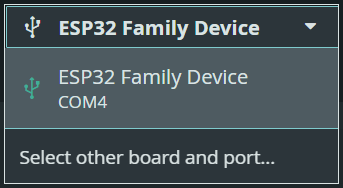
Click on Select other board and port…
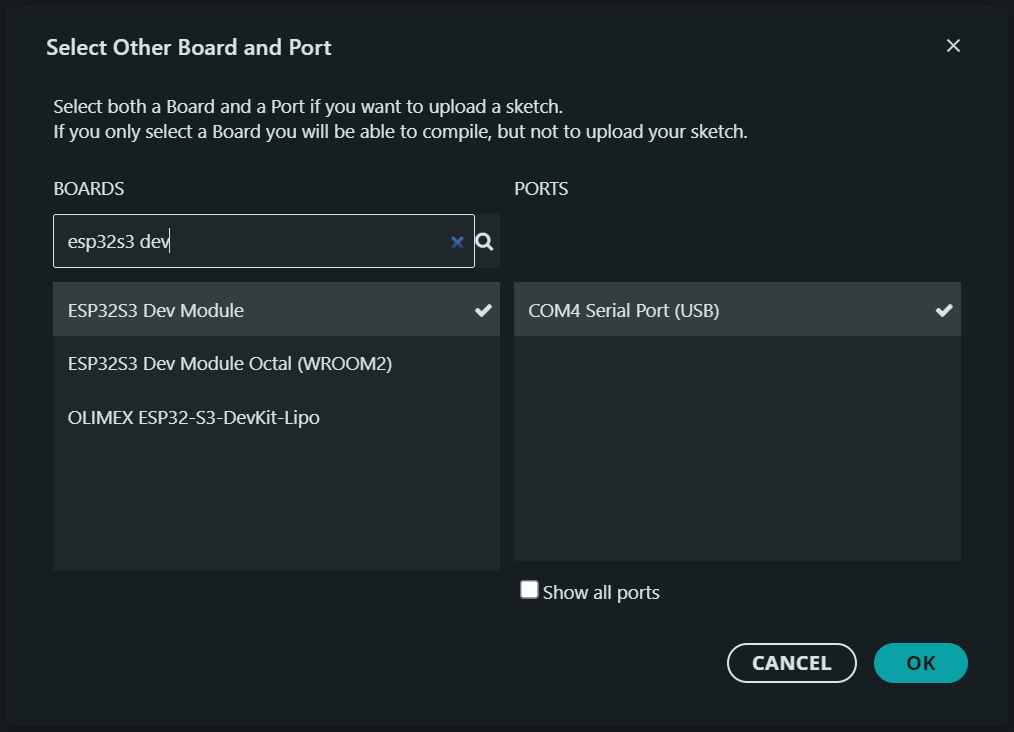
Search for ESP32S3 Dev Module and make sure that the correct COM Port is selected
PlatformIO
By default, PlatformIO can recognise ports and will automatic set COM port for you (Auto). If you wish to specify the port, you can select them from the PlatformIO Toolbar.
PlatformIO: Home
PlatformIO: Build
PlatformIO: Upload
PlatformIO: Clean
PlatformIO: Serial Monitor
Set Port [Select This]

Enabling USB Serial Port#
The EVOX1 uses the USB peripheral pins for program upload and serial communication.
Arduino
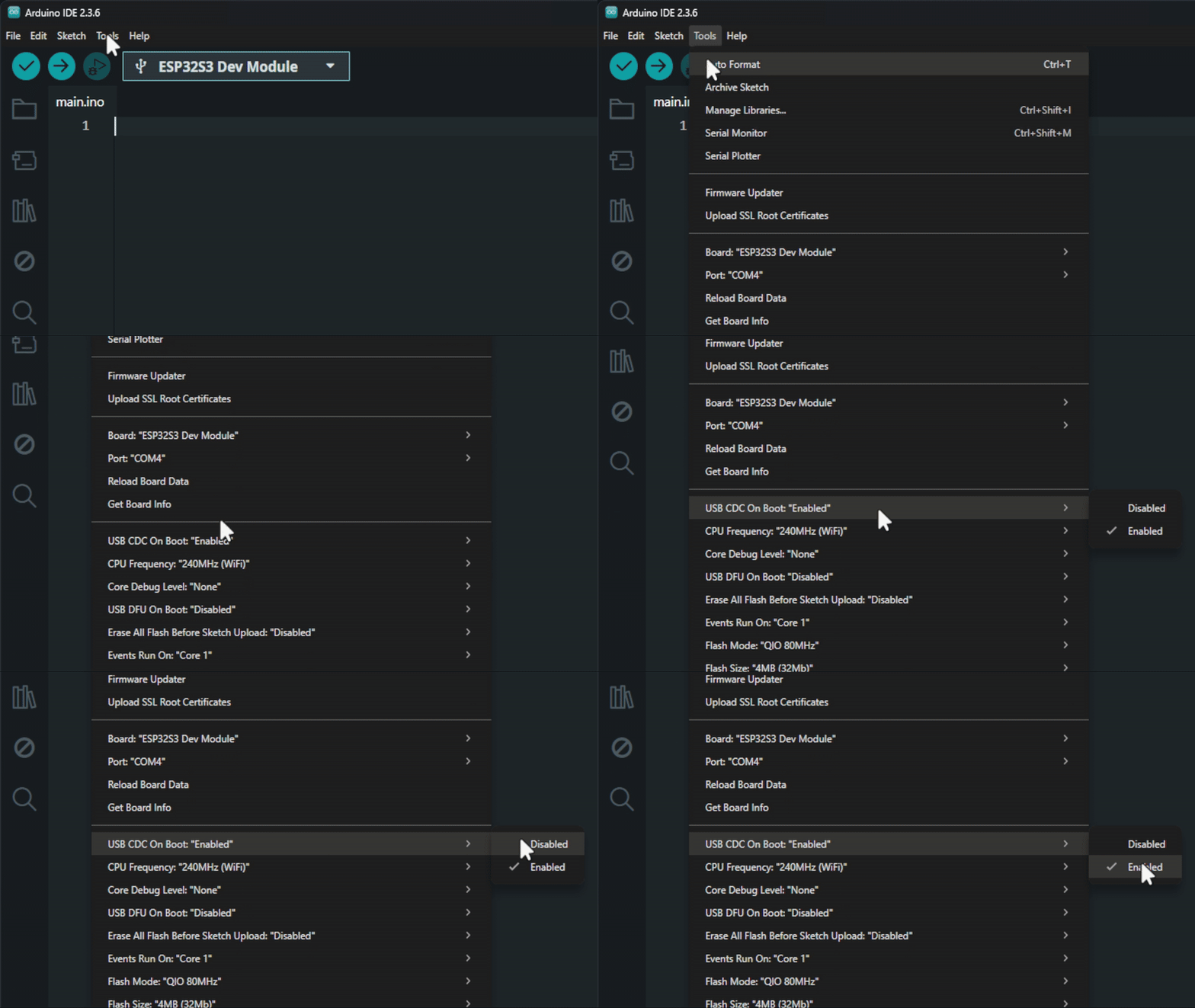
To enable the serial port, click on tools USB CDC on Boot Enabled
PlatformIO
To enable the serial port, include this line at the end of the code in platformio.ini
build_flags = -DARDUINO_USB_CDC_ON_BOOT=1

monitor_speed = 115200
upload_port = COM4
monitor_port = COM4