PlatformIO IDE in VSCode#
PlatformIO is a cross-platform, cross-architecture, multiple framework, professional tool for embedded systems engineers and for software developers who write applications for embedded products.
IDE Installation#
Before starting make sure to download and install Visual Studio Code.
Open VSCode
Go to the Extensions tab & search “PlatformIO”
Click install
When prompted by PlatformIO, restart VSCode
Setting Up the Project#
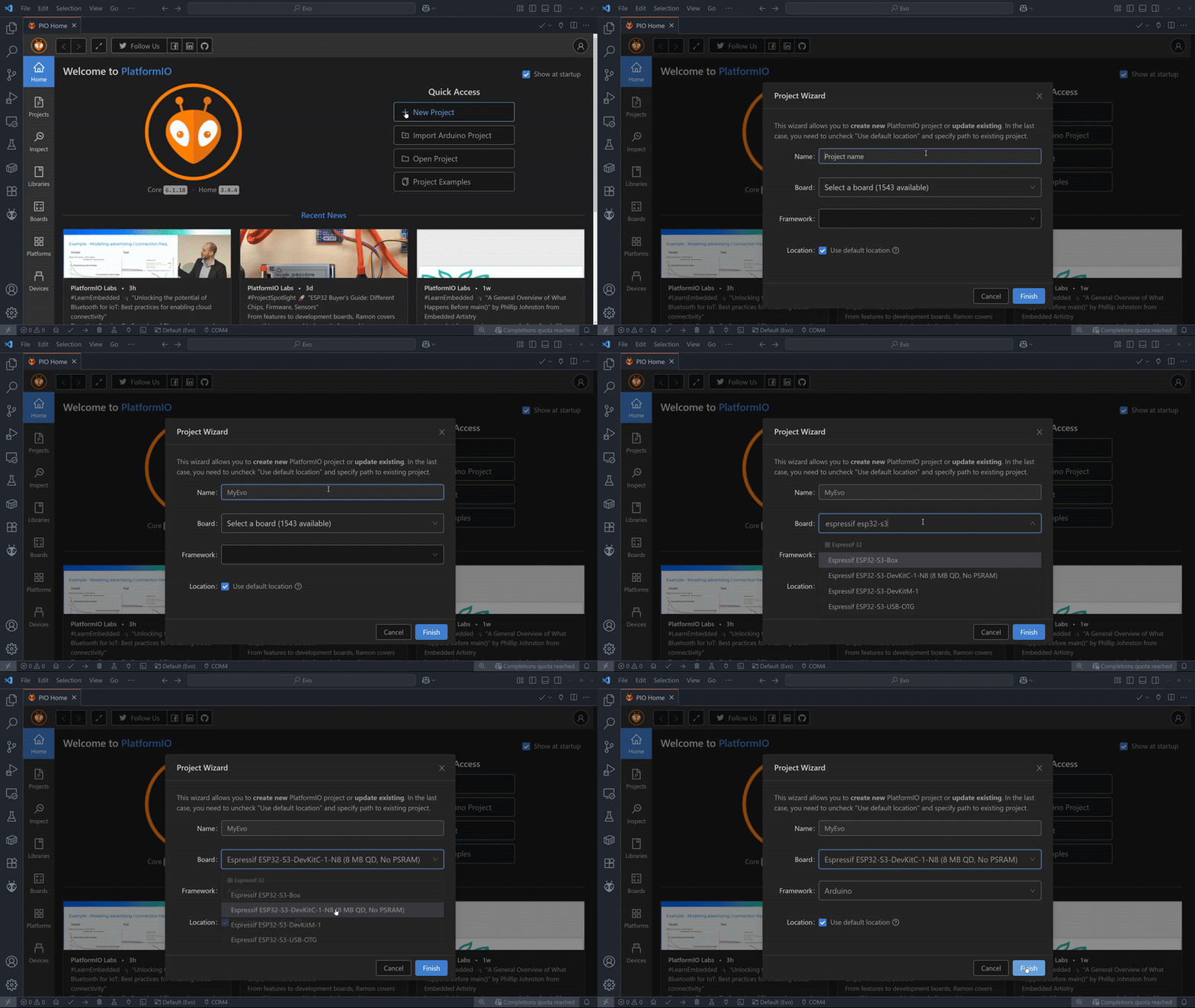
Once you’re on PlatformIO’s Home page, select New Project. The program will then prompt you to choose a name for your project so be creative.
Type in Espressif ESP32-S3 and select the Espressif ESP32-S3-DevkitM-1 board from the boards dropdown menu.
Leave the Framework option on Arduino. The default project path on Windows is Documents/PlatformIO/Projects, but you’re free to save it wherever you like.
After clicking Finish, you’ll need to wait a bit while the board files are downloaded.
Project Structure#
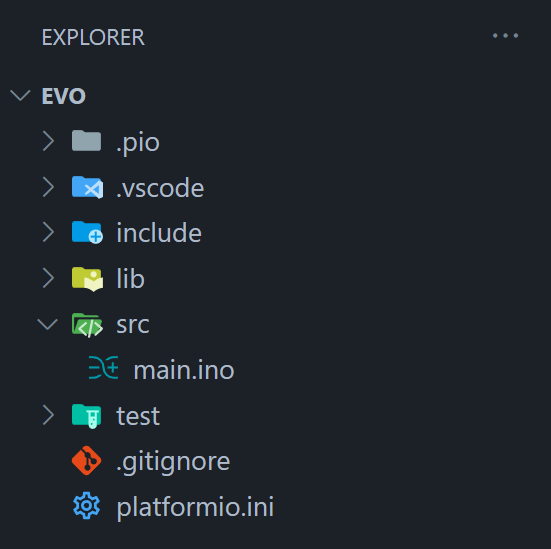
After creating a new empty PlatformIO project you’re ready for the next step. The PlatformIO project structure consists of the following:
|
Project configuration file |
|
Where you should place source code ( |
|
For the project-specific private libraries. |
Library Installation#
Open
platform.inifrom your project folder.Add
lib.deps =https://github.com/ljk1331ljk/EVO-arduino.gitunder the[env:esp32-s3-devkitm-1]section.[env:esp32-s3-devkitm-1] platform = espressif32 board = esp32-s3-devkitm-1 framework = arduino lib_deps =https://github.com/ljk1331ljk/EVO-arduino.git
Save the file and PlatformIO will download the library.